Your open-source AI workspace
v2.4.1 — Open Source · Apache 2.0
One request. Your AI team at work.
SynaBun is an open-source, self-hosted AI workspace and persistent memory MCP server: SynaBun Assistant coordinates Claude Code, Codex and OpenCode agents. Build, research, browse, and create in SynApp — one workspace to see the progress, review the results, and steer what happens next.
Why Your AI team One shared workspace
Describe what you want
Build a page, investigate a problem, or research your next idea. SynaBun Assistant plans the work, handles small tasks, and brings in agents from Claude Code, Codex, and OpenCode when the job needs more hands.
Keep the work in view
Follow each agent, open the files, inspect the browser, and review what changed. SynApp brings the conversation, code editor, and agent sessions into one workspace you can steer. Choose your models and set the limits.
Pick up where you left off
Your project decisions and useful discoveries stay with you. Shared memory gives the team context across sessions and providers, so the next task starts with what you already learned. Your workspace and saved knowledge are self-hosted.
SynaBun Assistant Give your ideas a team.
You ask once and get one report back. In between, the Assistant runs a team of agents for you.
An illustration with an example task, in the Assistant’s real interface. No live agents, accounts or API calls.
Technology Built on giants
Open protocols, best-in-class vector storage, and state-of-the-art neural embeddings. No vendor lock-in, no compromises.
Model Context Protocol
The open standard that lets AI talk to any tool. It's how SynaBun plugs into Claude and other assistants without locking you into one provider.
Embedded Database
Where your memories actually live. SQLite is a lightweight, zero-config embedded database that stores vectors and metadata locally — no server process, no Docker, no network overhead. Just a single file on disk.
Browser Automation
Give your AI its own fully headed Chrome browser. Not a headless scraper, a real browser it can see and control. Navigate, click, fill forms, screenshot, extract data, automate social media. Sessions and cookies persist across conversations. 46 Playwright-powered tools for true internet access.
JavaScript Runtime
The engine running under the hood. Node.js is trusted by millions of apps worldwide and keeps SynaBun fast, reliable, and easy to extend.
Local Embeddings
Neural embeddings that run entirely in Node.js. The all-MiniLM-L6-v2 ONNX model downloads once (about 90 MB) and generates 384-dimensional vectors locally — no API keys, no network calls, no cost.
Context-aware judgments
Jev helps the Assistant bring in relevant context, understand agent results and flag claims that need evidence. Small, typed judgments support the decisions around your workflow while your chosen agents do the work.
SynaBun MCP Bundle 158 tools
Memory, assistant orchestration, browser automation, AI image & video generation, visual workspace, and autonomous loops. One MCP connection. Install once, unlock everything.
SynApp Take it apart
Your assistant, agents, editor, and shared context in one window. Drag it, pull the layers apart, pick one.
Scene
Side panel
Workspace
Memory cards
Editor
Selection
Tools




















00 Workspace
Everything in one window.
The memory map, the SynaBun Assistant and your terminals live in the same workspace. Turn it around, then pick a layer.
01 Top bar
Everything one click away.
Apps, Skills, Automations, Games and Settings sit in the top bar, next to a search across every memory you have saved.
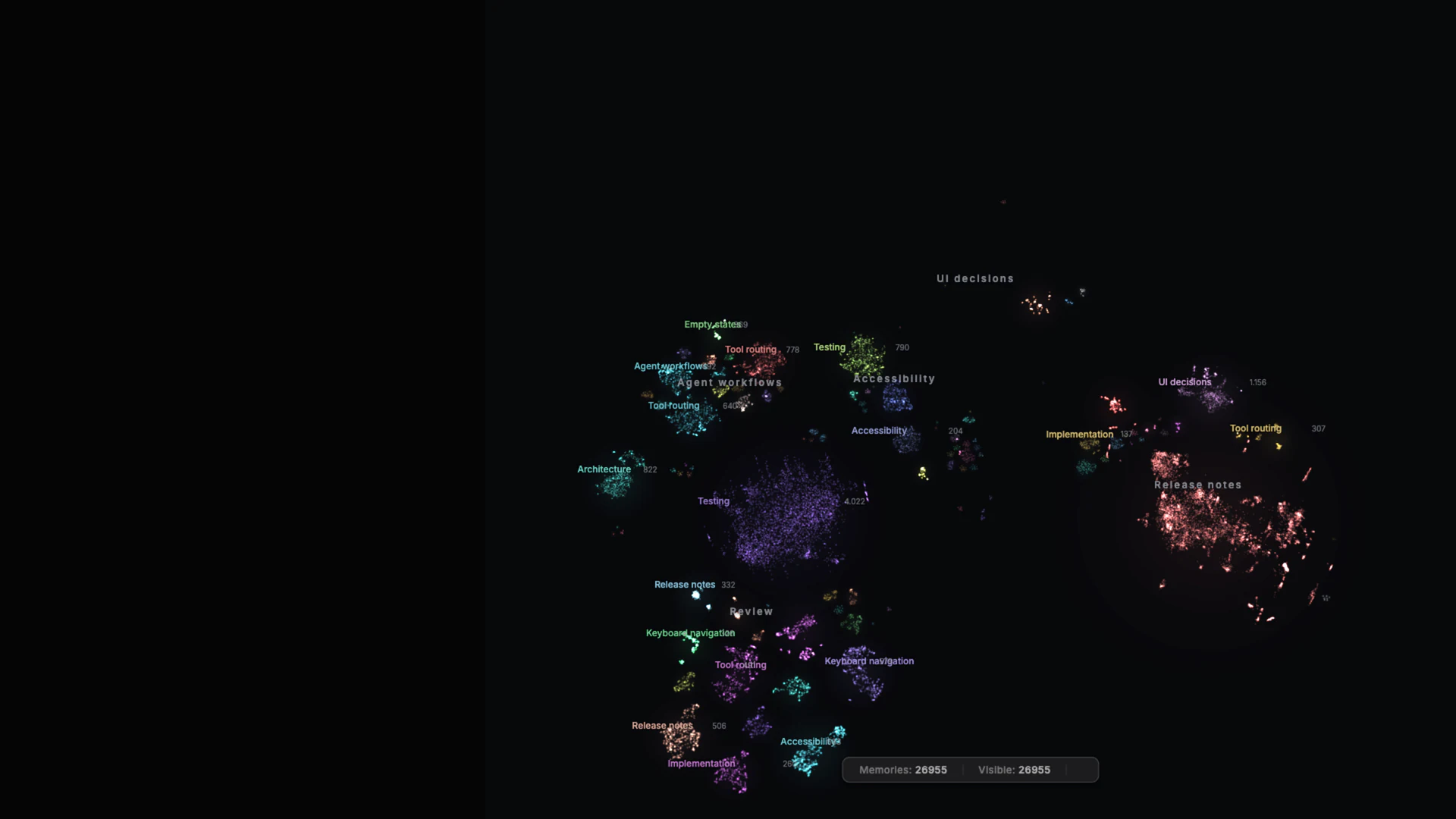
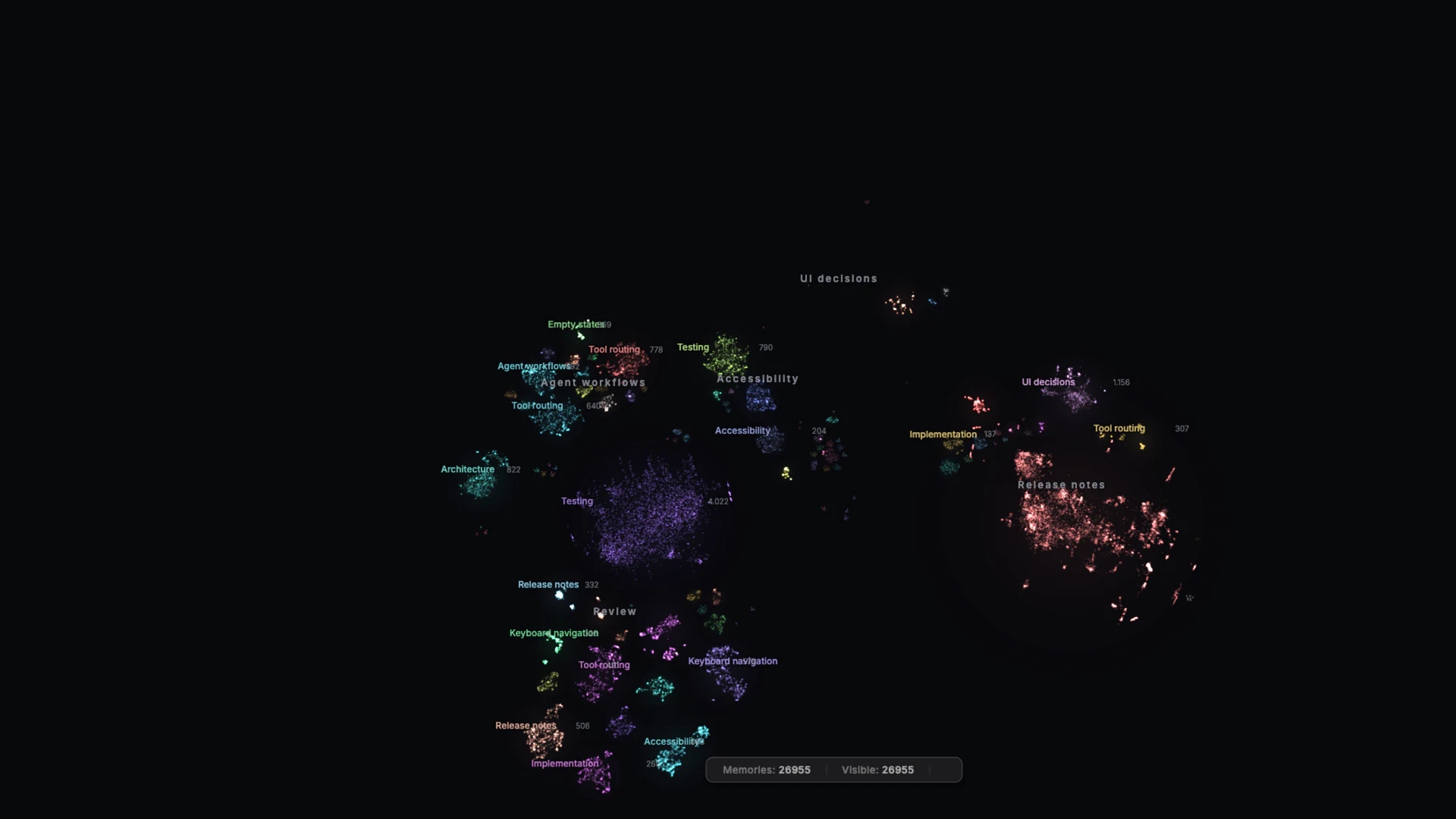
02 Memory map
Every memory, on one map.
Each point is a memory. Categories gather into islands, and similar memories sit side by side, so you can see what your assistants know.
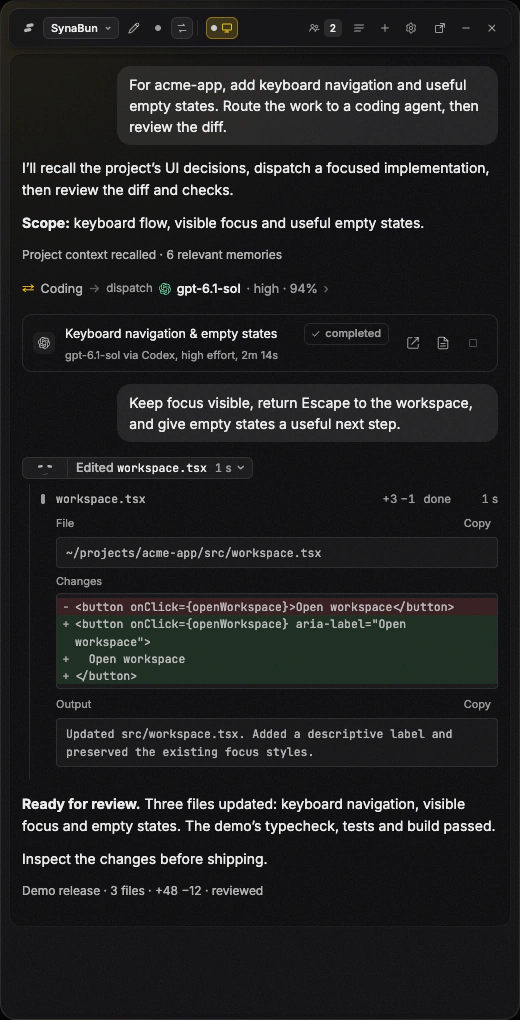
03 SynaBun Assistant
It plans, delegates and reports back.
The Assistant recalls your memories on every turn, does small jobs itself and hands heavier work to coding agents it tracks and summarizes. Here it routes a task to Codex, shows the completed run and the diff, and reports it ready for review.
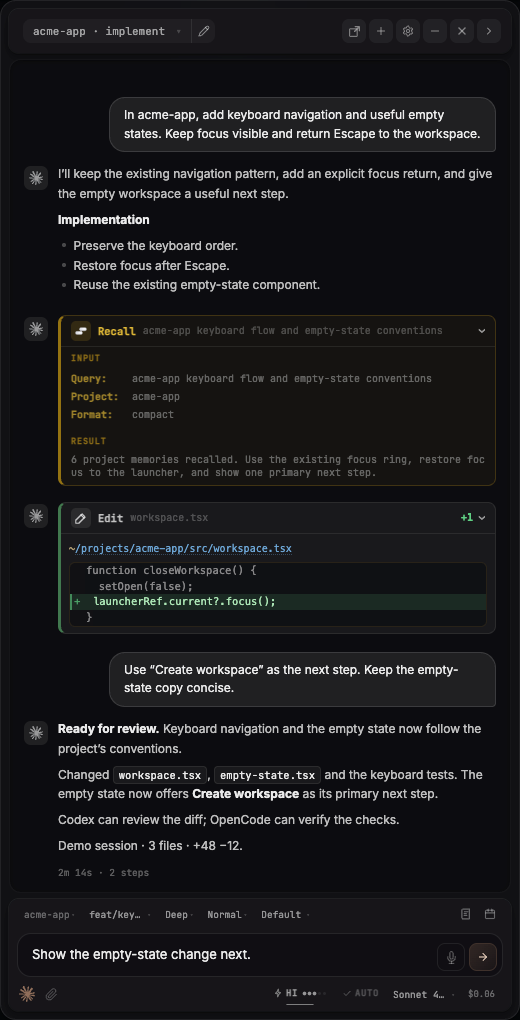
03 Claude Code
Claude Code, in the side panel.
A whole Claude Code session beside the map. Here it recalls the project's conventions from memory, edits a file and reports the change ready for review.
03 Codex
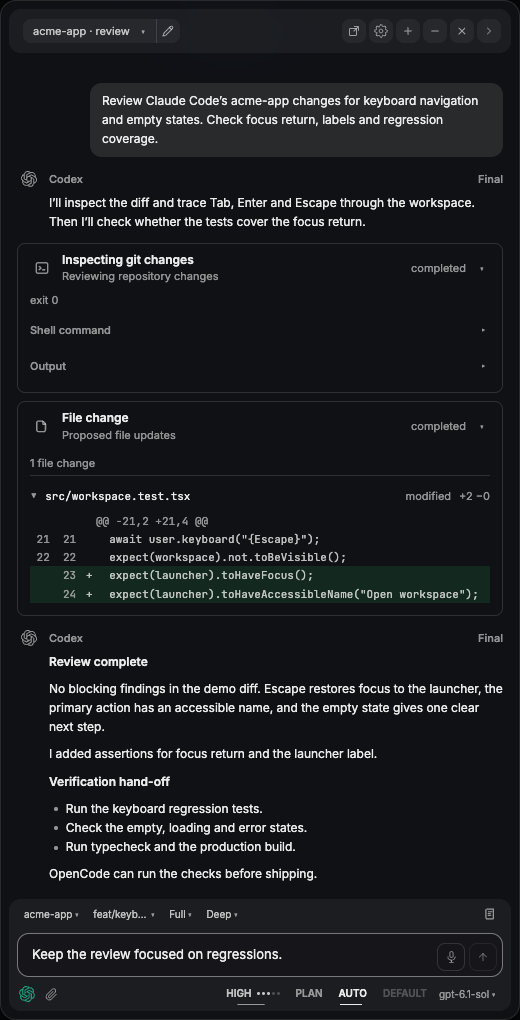
Codex reviews the change.
Codex takes the same place in the side panel. Here it inspects the diff, finds nothing blocking and adds two test assertions.
03 OpenCode
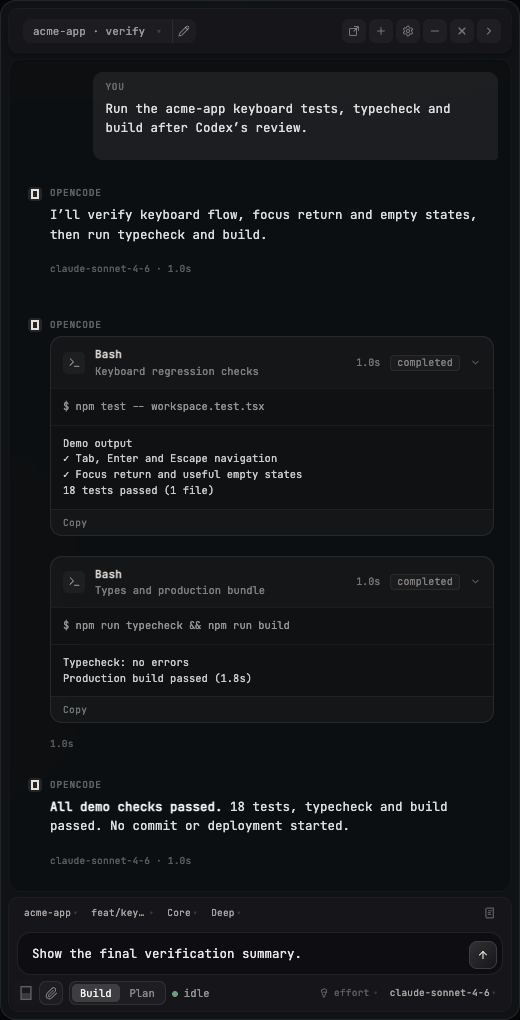
OpenCode runs the checks.
OpenCode works there too. Here it runs the keyboard tests, the typecheck and the build of the demo project, and every check passes.
04 Composer
Pick the brain for each request.
Claude Code, Codex or OpenCode. Choose the model, the effort and the permission mode right where you type.
05 Floating CLI
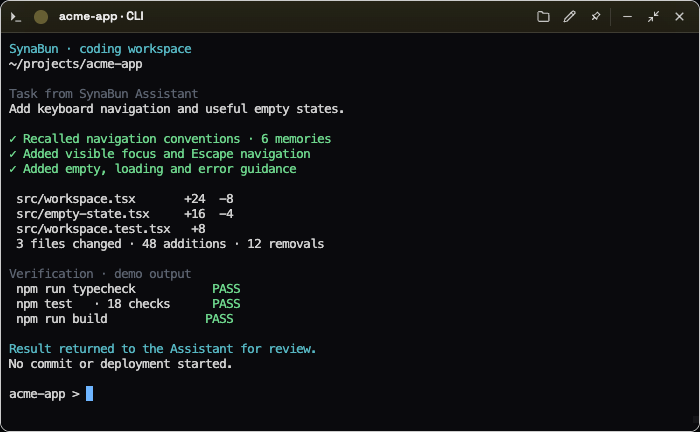
A terminal that floats where you need it.
Any terminal tab can lift out of the dock into its own window, so a coding session stays beside the conversation that started it.
06 Minimized pills
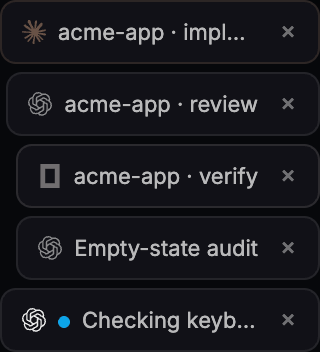
Minimized sessions wait as pills.
Minimize a side panel or a floating terminal and it folds into a pill. Five sessions wait in this tray; a dot marks the one that is still running.
02 Focus mode
Focus mode puts the map away.
A toggle in the top bar, or the V key, hides the memory map, its search and its controls, and leaves a static background with a whiteboard.
00 Explorers and memory cards
Explorers on the left, memories as cards.
The Memory Explorer and the File Explorer slide in from the left, and the map moves over to make room. A memory opened from the explorer becomes a card over the map.
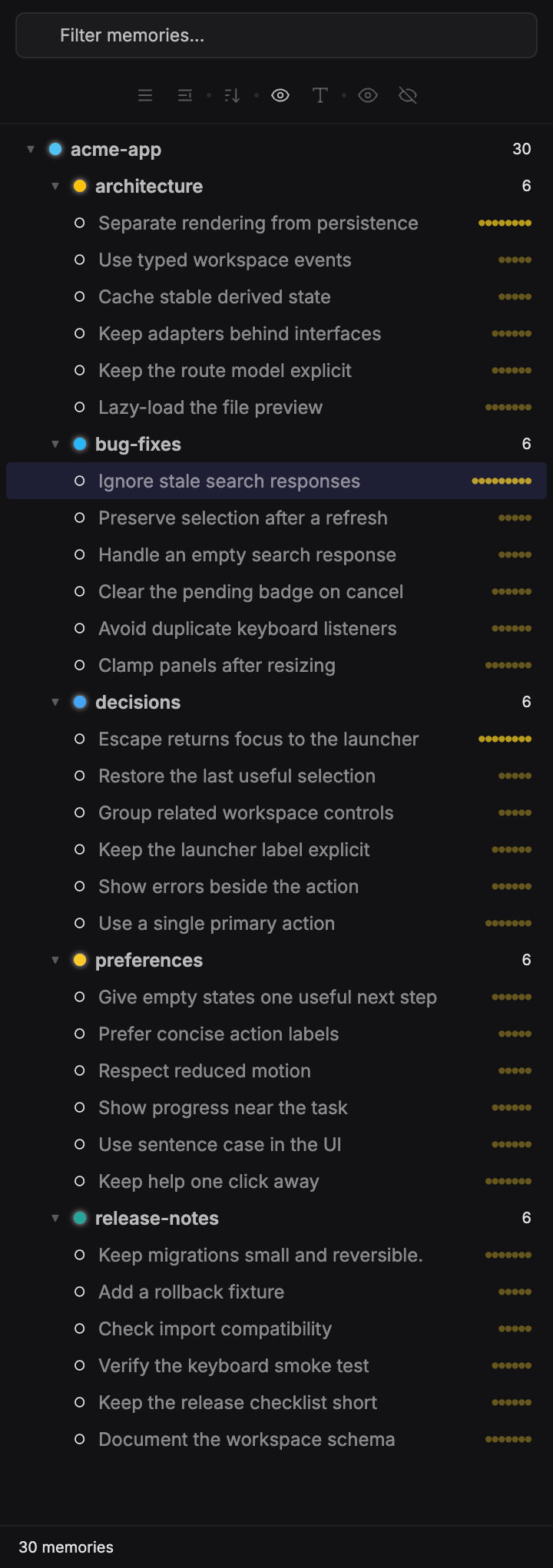
01 Memory Explorer
Every memory of the project, in a tree.
Thirty demo memories of the acme-app project under five categories, with a filter field at the top. The dots show each memory's importance. Open a row and the memory becomes a card.
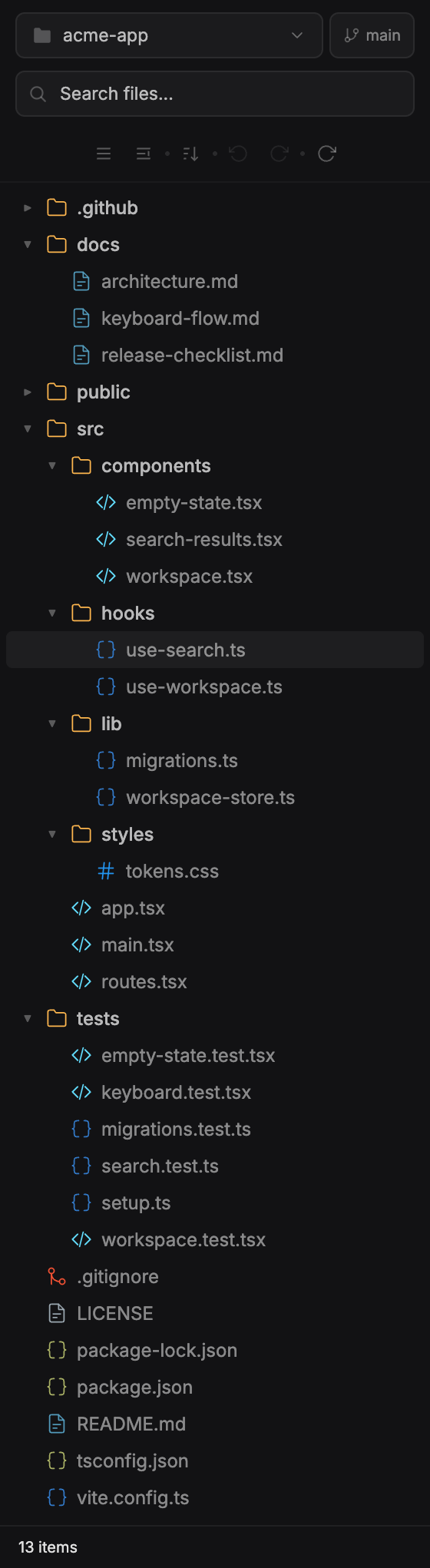
02 File Explorer
The project's files, beside its memories.
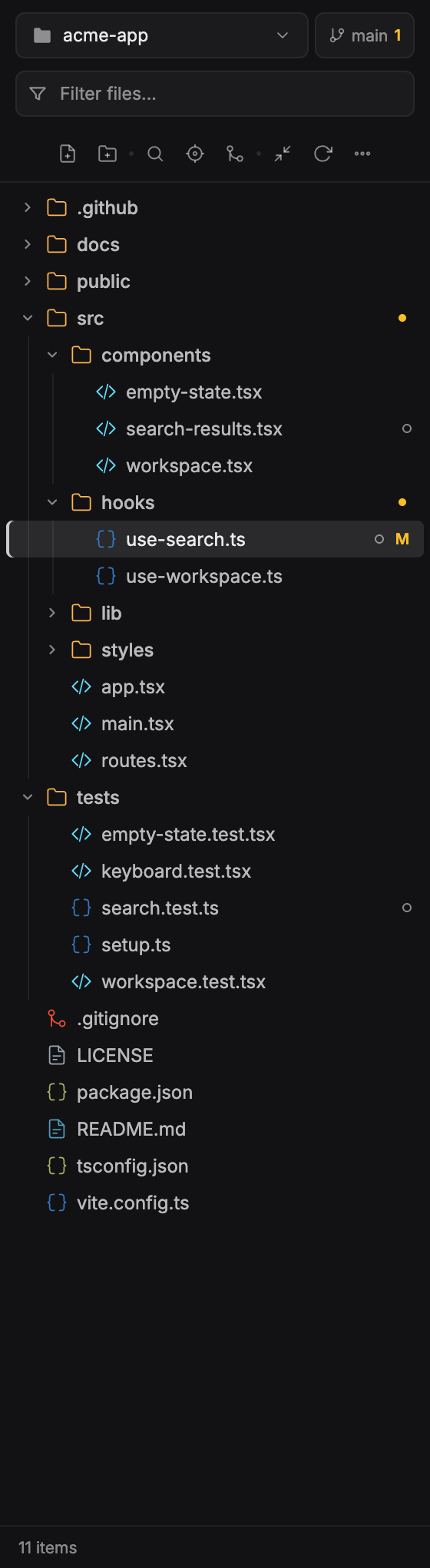
The repository tree of the same project, with its branch and a file search. Here the docs, src and tests folders are open, and use-search.ts is the active row.
03 Workspace toolbar
The buttons that open the explorers.
The toolbar sits over the map. Its Memory Explorer and File Explorer buttons are both on here, and the pill beside them names the workspace: acme-app.
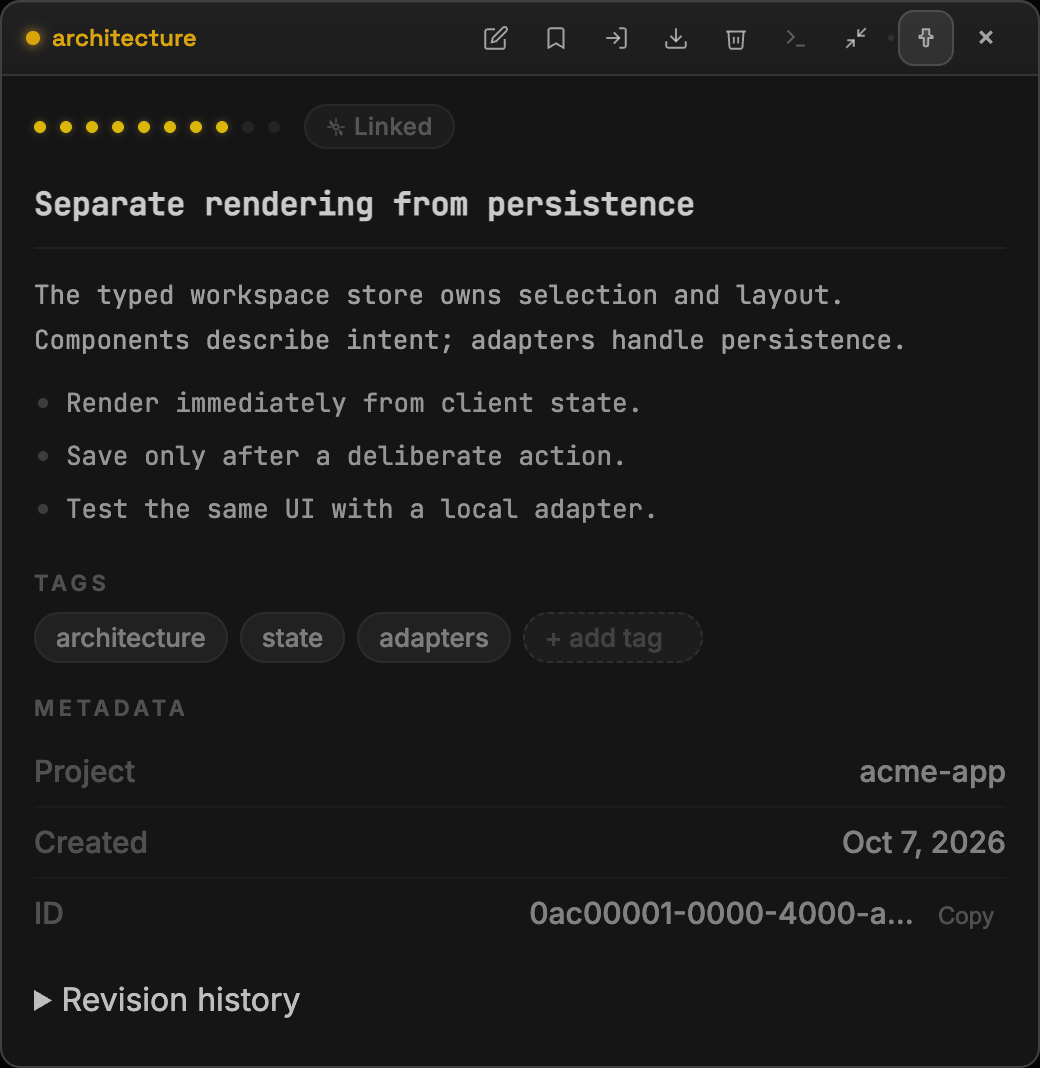
04 Memory card · architecture
A memory, opened as a card.
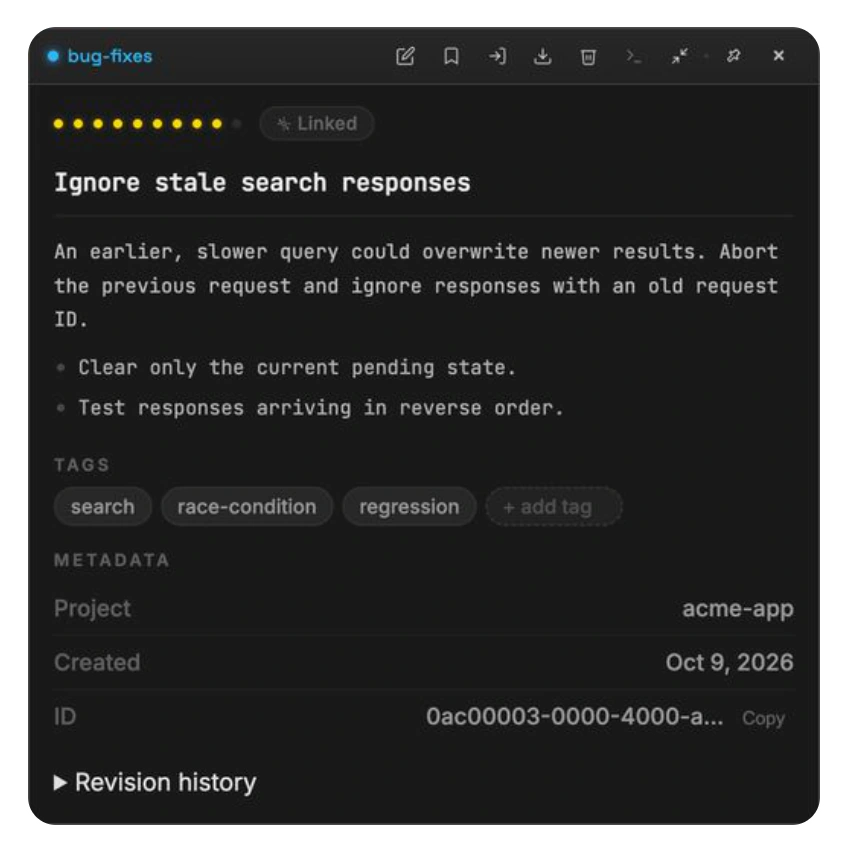
Its category and importance, the note itself, its tags, then the project, the date, the ID and the revision history. This architecture note is pinned.
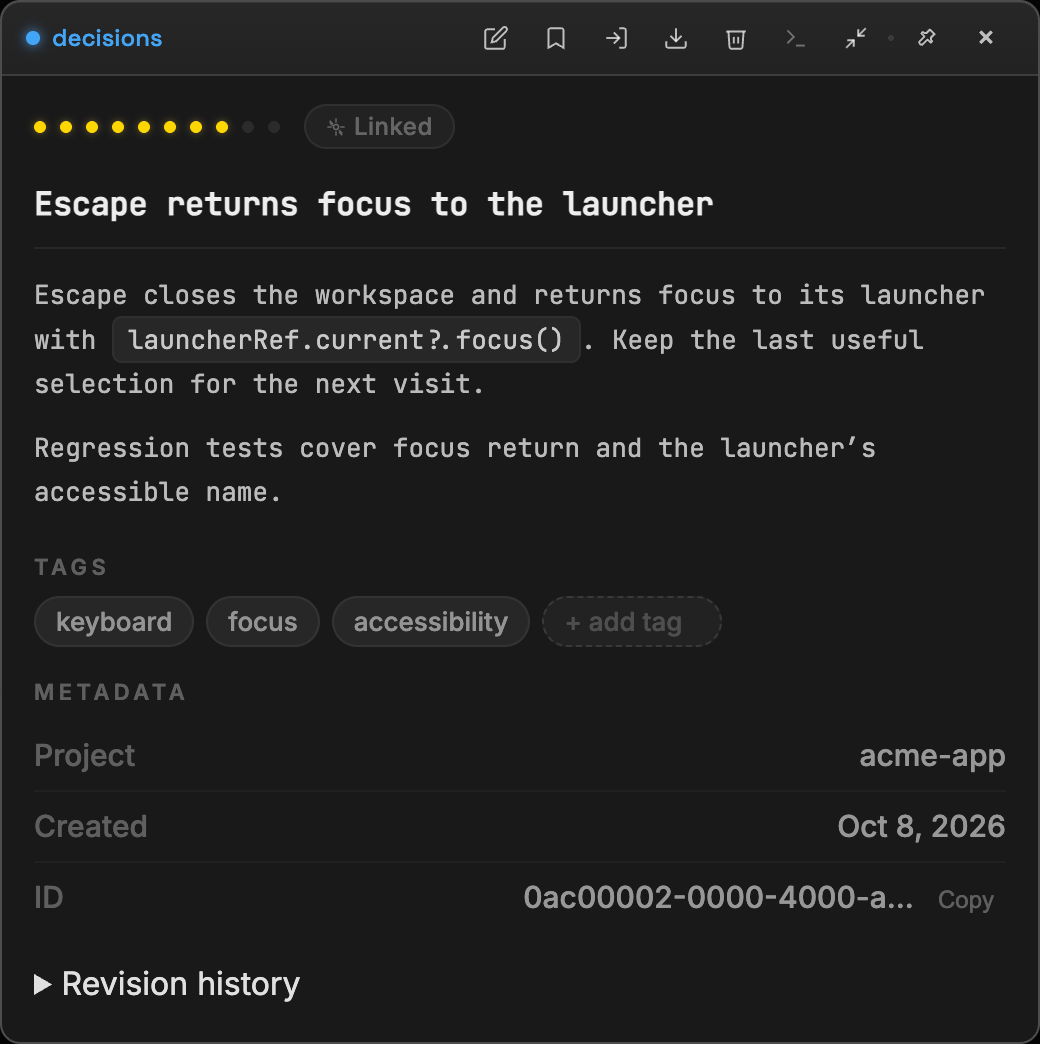
05 Memory card · decision
A decision, on record.
Escape closes the workspace and returns focus to its launcher: the decision, the tests that cover it, its tags and its date. Importance 8 of 10.
06 Memory card · bug fix
A bug fix, with its cause.
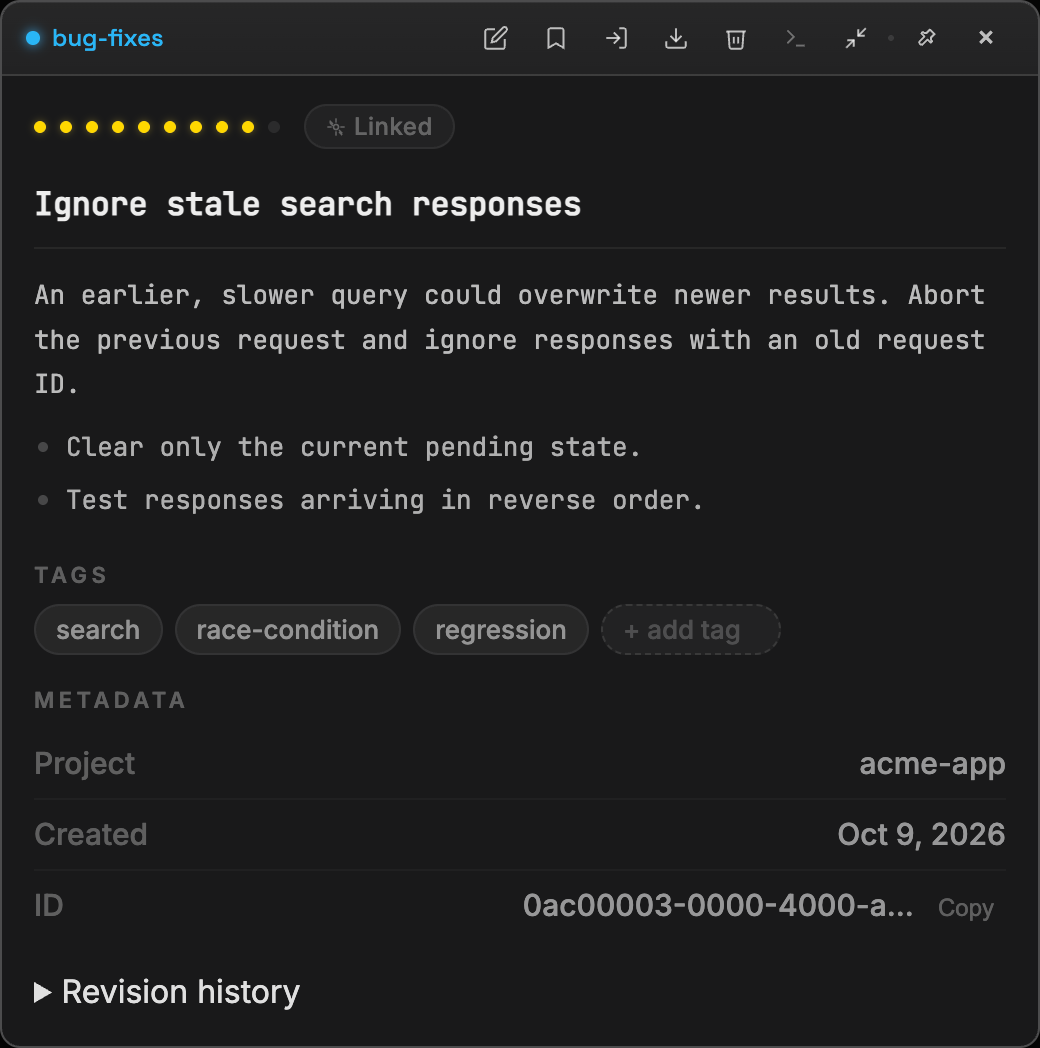
A slower search query could overwrite newer results; the note says how that was stopped. Its row is the one selected in the Memory Explorer.
07 Memory card · preference
A preference, written down.
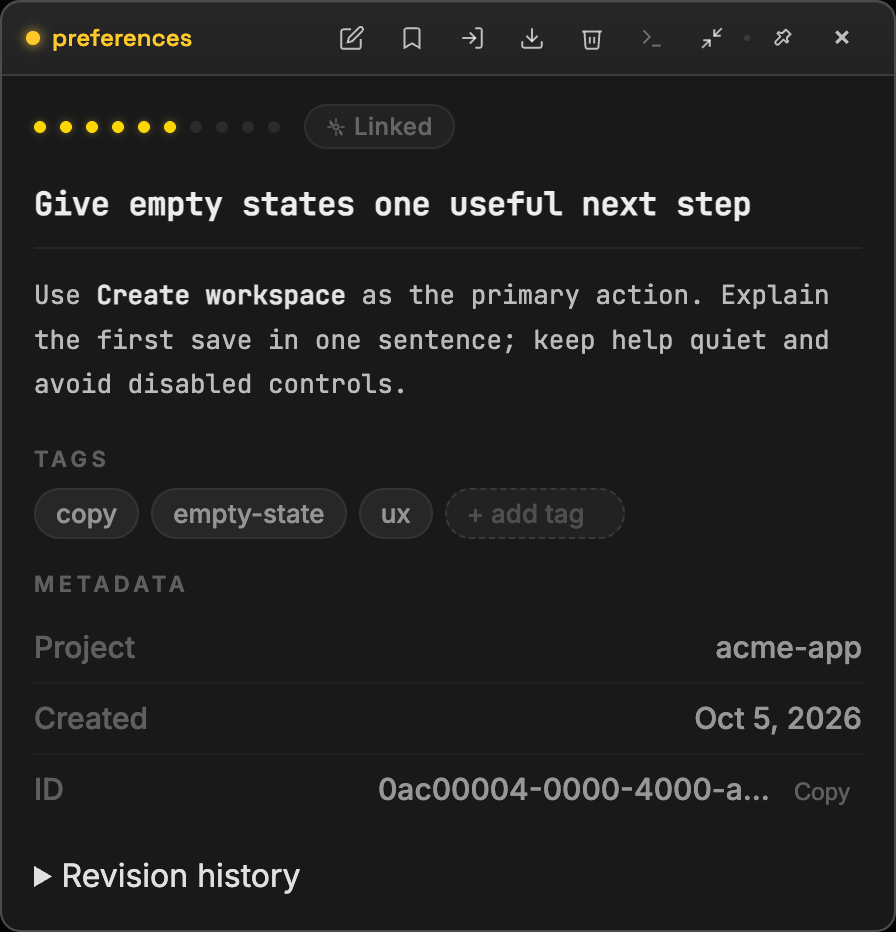
The project's rule for empty states: one useful next step. Importance 6 of 10, with three tags.
08 Memory card · release note
A compact card, opened up.
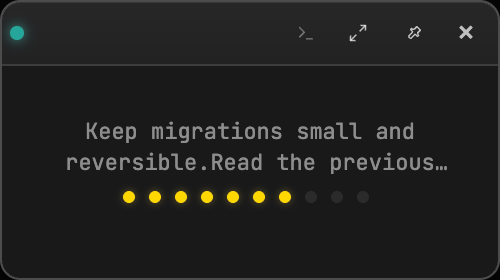
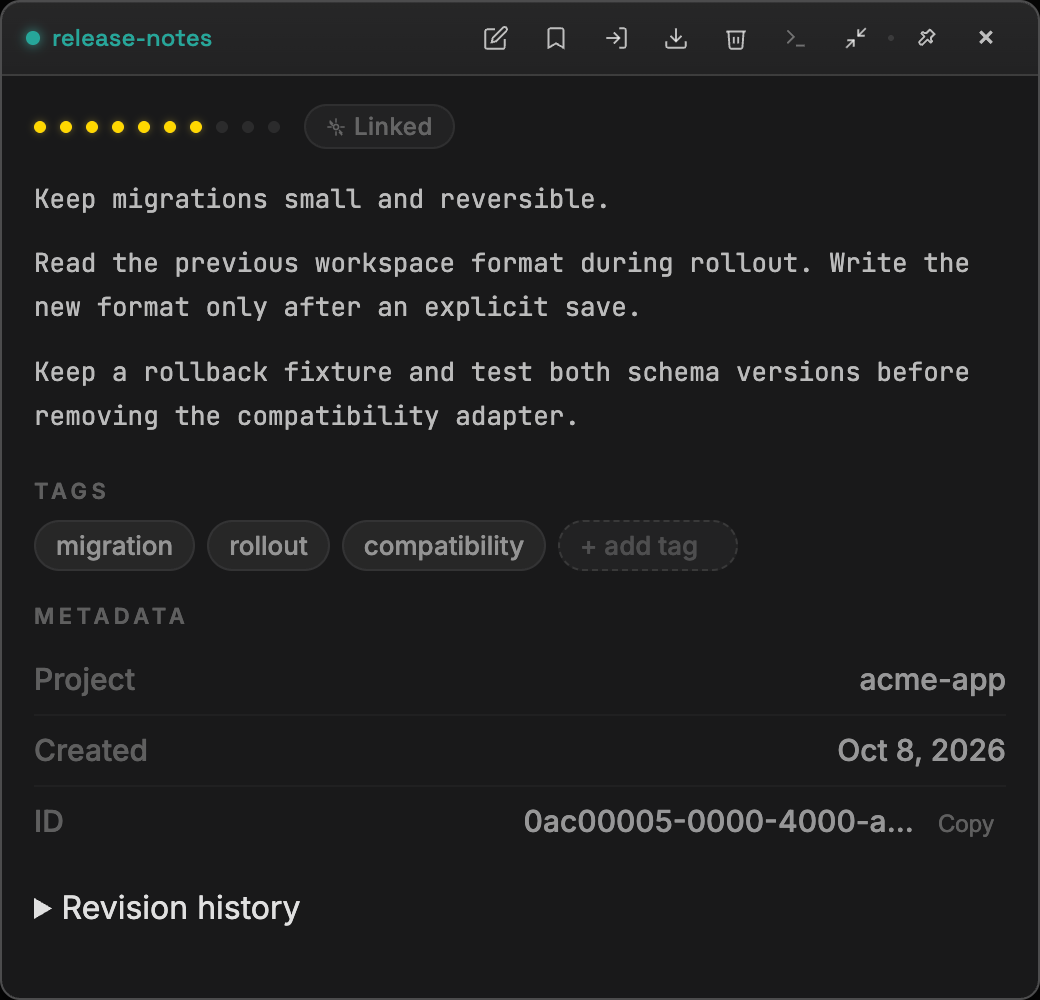
Over the map this memory is a compact card: a two-line preview and its importance. Its close-up shows the same memory expanded, with its category, tags and date.
00 Code editor and autocomplete
Your files, open beside the workspace.
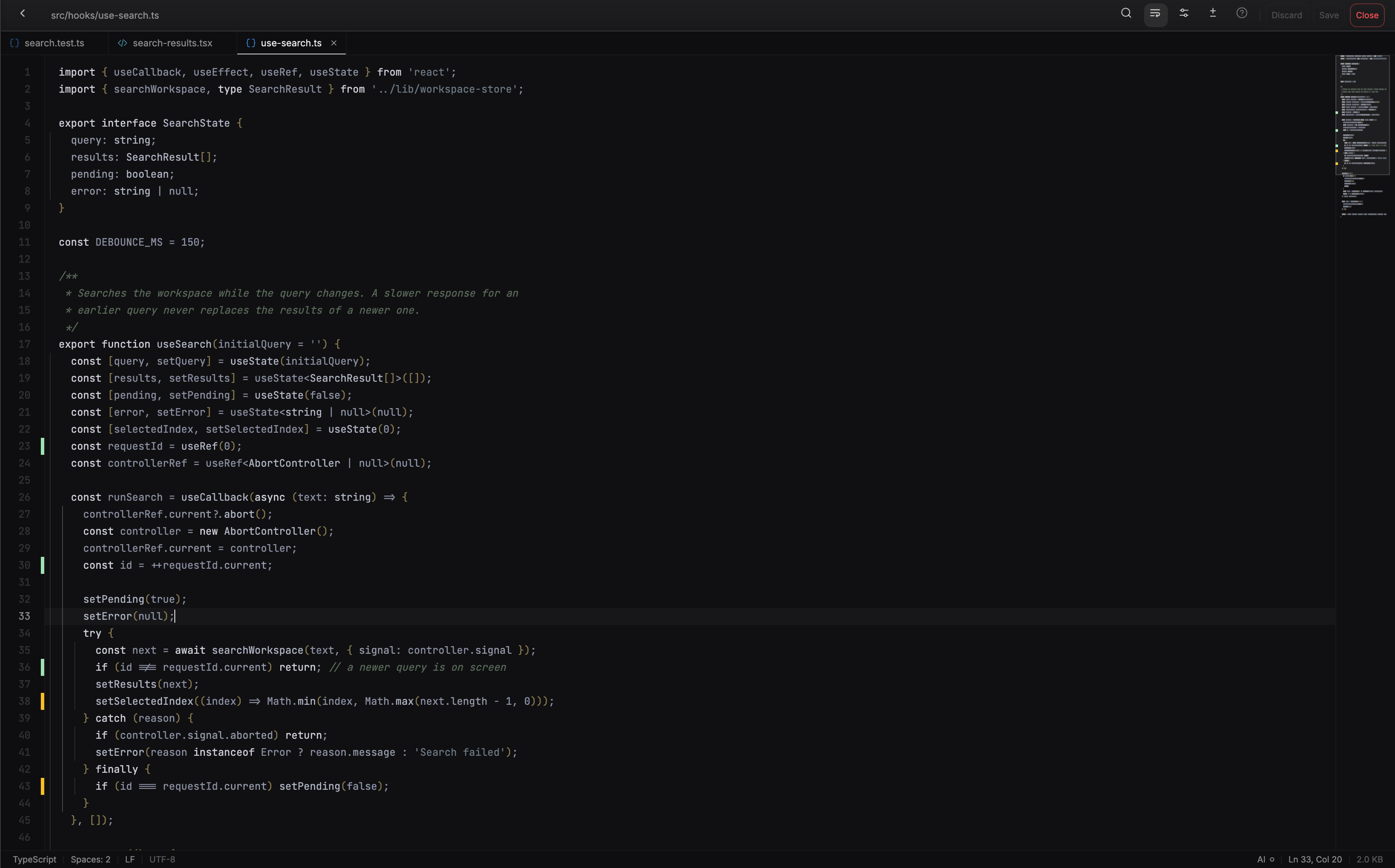
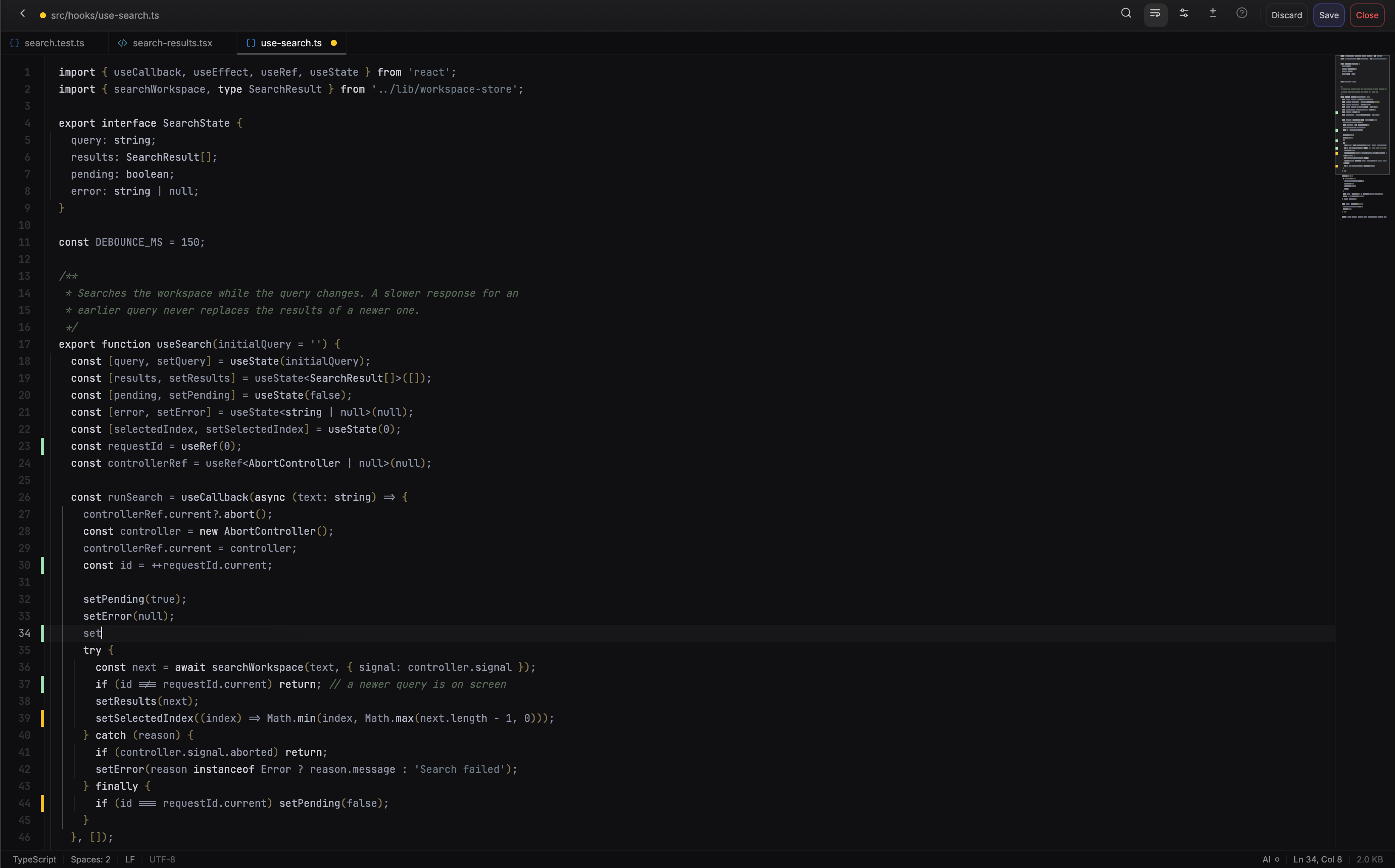
Double-click a file in the File Explorer and it opens in a tab: line numbers, git markers, a minimap, and a completion list that offers the names in scope and the words of the file as you type.
01 File Explorer
A double click opens a file.
The File Explorer of the acme-app demo project, docked on the left. A double click on a file opens it in the editor, kept in a tab; here use-search.ts is open and modified.
02 Code editor
CodeMirror 6, with your files in tabs.
Three files open in tabs. The header has Find, Word wrap, View, a Diff against the last commit, Discard and Save; the git column marks added and modified lines, and the status bar shows the language, the caret and the AI chip.
03 Completion list
Suggestions as you type.
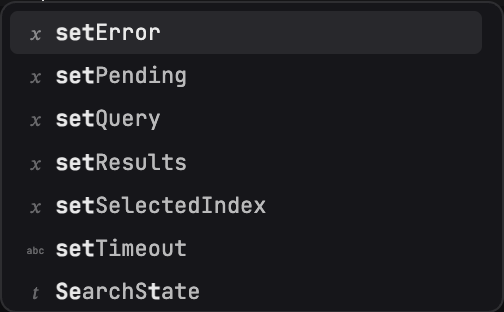
Typing set opens the list: names in scope from the file's language first (setError, setPending, setQuery…), then words of the file such as setTimeout. Ctrl-Space opens it too; the arrows move, Enter accepts and Esc closes.
04 AI suggestion · staged
A suggestion in grey, after the caret.
With AI autocomplete switched on, a suggestion of up to 12 lines appears as grey text: Tab accepts it, ⌘→ takes one word, Esc dismisses it. This one is staged for the demo, not a live model answer.
05 AI autocomplete
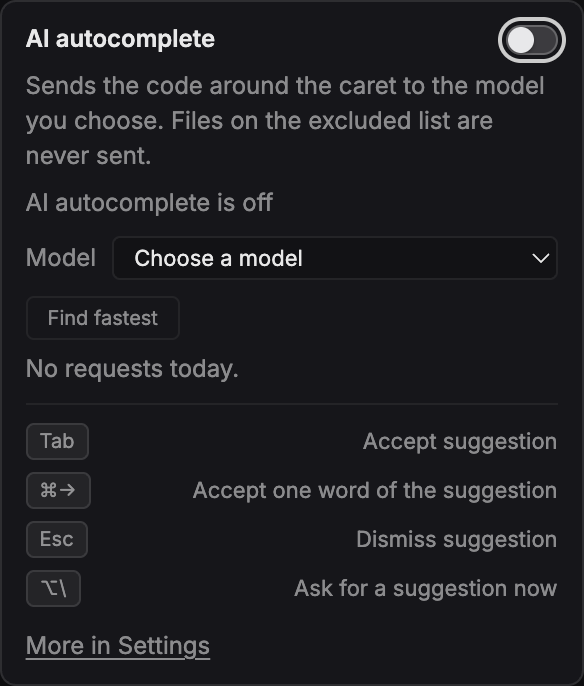
Optional, and off until you switch it on.
The AI chip in the status bar opens this popover: the switch, the model you choose (an OpenCode model, or your own Ollama or OpenAI-compatible endpoint), Find fastest, today's requests and the keys. Files on the excluded list are never sent.
06 Go to file
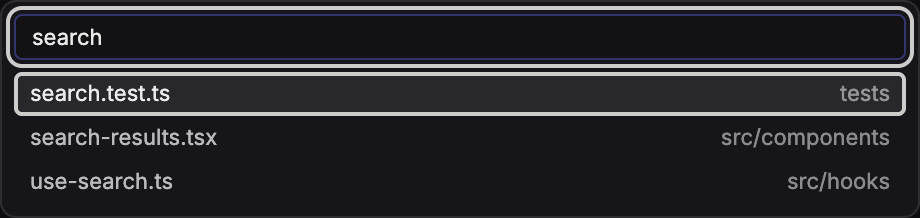
⌘P finds a file by name.
The project's files, matched by what you type; with nothing typed, the other open tabs, last used first. Here search finds the hook, its results component and its test.
07 Command palette
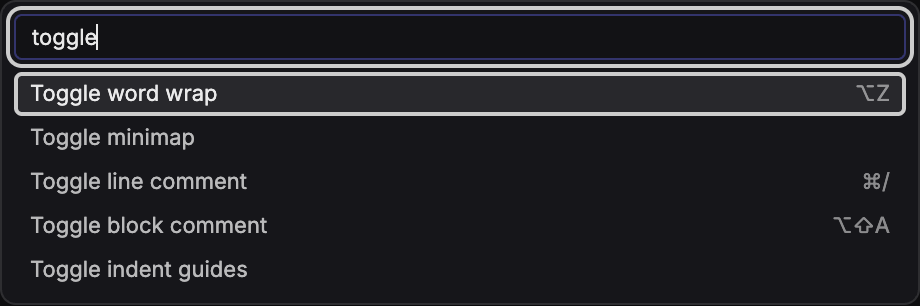
F1 lists every editor command.
Find a command by parts of its name, with its key beside it. Here toggle finds word wrap, the minimap, line and block comments, and indent guides.
00 Focus-mode whiteboard
Focus mode turns the canvas into a whiteboard.
Notes, lists, shapes, arrows, sketches, wireframe blocks and pasted screenshots. The board is saved on the server, shown live in your other windows, and your agents can draw on it too.
01 Toolbar
Every tool on one rail.
Select, Multi-select, Text, List, Arrow, Shape, Pencil and Wireframe section, then Color, Undo and Redo (50 steps), Delete, Snap to grid, Tile terminals and the logo toggle. Hold Ctrl to place several items in a row.
02 Text and list
Notes, written on the board.
A bold heading, a pencil stroke under it and a bullet list. In a list, Enter adds an item and Backspace on an empty one removes it.
03 Shapes and arrows
Sketch how it works.
A rectangle, a circle and another rectangle, labelled and joined by two arrows: query, debounce, newest results. An arrow's end snaps to an element clicked near its center, then follows it.
04 Wireframe sections
Rough out a screen.
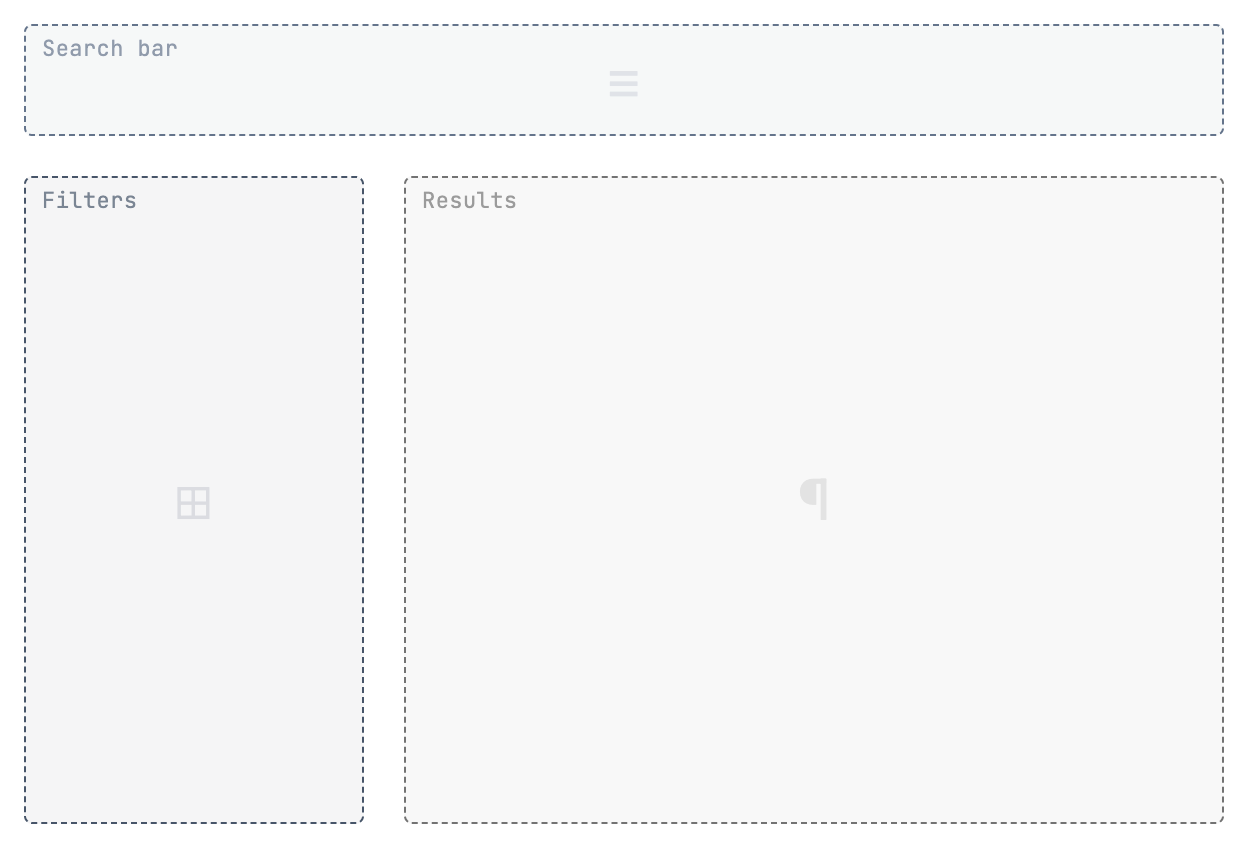
Labelled blocks of twelve kinds. Here three of them lay out the search page: a navbar named Search bar, a sidebar named Filters and a content block named Results.
05 Pasted image
Paste a screenshot onto the board.
⌘V puts an image on the board, shown up to 400 px wide. This one is a memory card of the demo project.
06 Text menu
Every item has its own menu.
A selected text card gets smaller and bigger, bold and italic, duplicate, copy and delete, with a handle to move it and one to rotate it.
07 Image menu
Send a picture to a terminal or a panel.
A selected image can go to a terminal or a side panel, or be duplicated, copied or deleted. It has a rotate handle too.
08 Multi-select
Select a group, act on all of it.
Multi-select (M) draws a marquee. Here it takes the nine items of the flow; the menu counts them and offers Duplicate All and Delete All.
09 Shape picker
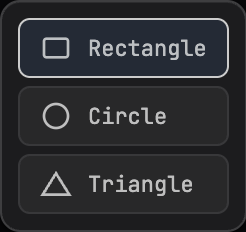
Rectangle, circle or triangle.
Drag out a hand-drawn shape. A double click on a shape cycles it through rectangle, pill, circle, triangle and drawn circle.
10 Section picker
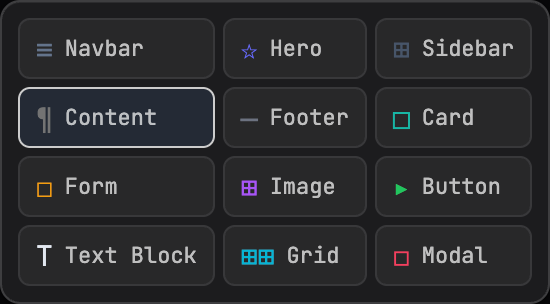
Twelve kinds of wireframe block.
Navbar, Hero, Sidebar, Content, Footer, Card, Form, Image, Button, Text Block, Grid and Modal. A double click on a block renames it.
11 Color picker
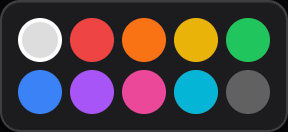
Ten colors.
The color of the next thing you draw. With something selected, it recolors the selection.
12 Arrow
Click the points, double-click to finish.
An arrow being drawn: a dashed line follows the pointer, each click adds a point, and a double click or Enter finishes it.
Drag to orbit · Click a layerSwipe to orbit · Tap a layerDrag, or hold Shift and press the arrow keys, to see the restUse the pan buttons to see the restClick outside the layer, or press Esc, to go backTap outside the layer to go back · Real SynApp captures, demo project
Connects Every model, one memory
One MCP server syncs across every AI surface simultaneously. Switch tools mid-thought, your context is already there.

Install Get set up, you're ready
Download the app or install from the command line, then run the onboarding wizard. SQLite and local embeddings are built in — the wizard handles the rest.
localhost:3344Download SynaBun
v2.4.1 · Release notes ↗Antivirus reports open the VirusTotal scan for that exact installer, with detections, engine results and analysis dates.
Unsigned builds
No Apple Developer ID or notarization, no Windows code-signing certificate: macOS and Windows can't verify the publisher and warn on first launch.
How to open SynaBun
macOS
- Open the disk image and drag SynaBun into Applications. Don't run it from the disk image.
- Open SynaBun from Applications. Gatekeeper blocks it, saying Apple could not verify it is free of malware: close the message.
- Open System Settings › Privacy & Security, scroll to Security and click Open Anyway, then enter your password. The button stays there for about an hour after step 2.
On macOS 14 or earlier you can instead Control-click SynaBun in Applications and choose Open.
Or skip steps 2 and 3: with SynaBun in Applications, run this in Terminal
xattr -dr com.apple.quarantine /Applications/SynaBun.app Optional: check the disk image before you open it
shasum -a 256 ~/Downloads/SynaBun-*.dmg Compare the result with your file's line in SHA256SUMS ↓.
Windows
- If your browser warns that the file isn't commonly downloaded, choose to keep it.
- Run the installer. SmartScreen shows Windows protected your PC: click More info, then Run anyway.
- It installs for your account only and needs no administrator rights.
Optional: check the installer before you run it, in PowerShell
Get-FileHash $HOME\Downloads\SynaBun-*.exe Compare the hash with your file's line in SHA256SUMS ↓; upper or lower case doesn't matter.
Linux
- Move the AppImage somewhere it can stay, for example
~/Applications. - Make it executable, then double-click it or run it from a terminal:
chmod +x ~/Applications/SynaBun-*.AppImage
Optional: check the AppImage before you run it
sha256sum ~/Applications/SynaBun-*.AppImage Compare the result with your file's line in SHA256SUMS ↓.
Rather avoid the warnings? The command-line install runs on your own Node.js and skips these packages.
Or install from the command line
100% free and open source (memory and embeddings stay on your machine)
Questions Answered
What is SynaBun?
SynaBun is an open-source, self-hosted AI workspace and persistent memory MCP server: SynaBun Assistant coordinates Claude Code, Codex and OpenCode agents. It runs on your own computer, as a desktop app for macOS, Windows and Linux or as the synabun npm package, and it is free and open source under the Apache 2.0 license.
How does SynaBun Assistant coordinate several agents?
Describe what you want in SynApp. The Assistant handles small jobs itself and dispatches larger ones to Claude Code, Codex or OpenCode worker agents, then follows their progress, steers them and summarizes the results. You choose its models and budgets, and you can stop any run.
Which AI tools work with SynaBun?
SynaBun configures itself for Claude Code, Codex, Gemini CLI and OpenCode, and has its own side panels for Claude Code, Codex and OpenCode. Cursor, Windsurf and other clients that support the Model Context Protocol (MCP) connect to its MCP server with a standard configuration.
Where does SynaBun keep its memory?
In a SQLite database on your computer, in the SynaBun data folder (~/.synabun, or %APPDATA%\synabun on Windows). Embeddings are computed locally with the all-MiniLM-L6-v2 model, so memory needs no API key and no cloud service, and recall combines keyword search with those embeddings.
Is SynaBun free and open source?
Yes. SynaBun is free and open source under the Apache 2.0 license, and its source code is on GitHub. The AI providers you connect to it, such as the accounts behind Claude Code or Codex, bill you separately.
How do I install SynaBun?
Download the desktop app for macOS, Windows or Linux from GitHub Releases, or install it from the command line with npm install -g synabun and run synabun (Node.js 22.5 or later). A setup wizard then connects your AI tools.
From the blog
- Using all-MiniLM-L6-v2 for Local Vector Memory in MCP Servers
- MCP Memory Servers: SynaBun vs mem0 vs Letta vs Zep
- Self-Hosted AI Memory: Why Local Beats Cloud for Coding Agents
- External Models as Agents, SynaBun Memory as the Bus
- OpenCode + Ollama: Local AI Coding Without the Setup Tax
- Loops and Agents From Hell: Making AI Run Itself Without Imploding